Check power, cable, and video ports
Before software fixes, prove power and a solid video link. This page is connector-agnostic (HDMI, DisplayPort, USB-C, DVI, VGA). It is not an HDMI “no signal” specialty guide.
Ordered steps
-
Monitor power path
Verify the wall outlet, power strip switch, and monitor brick. Hold the monitor power button firmly. Some panels need a long-press to wake from deep standby.
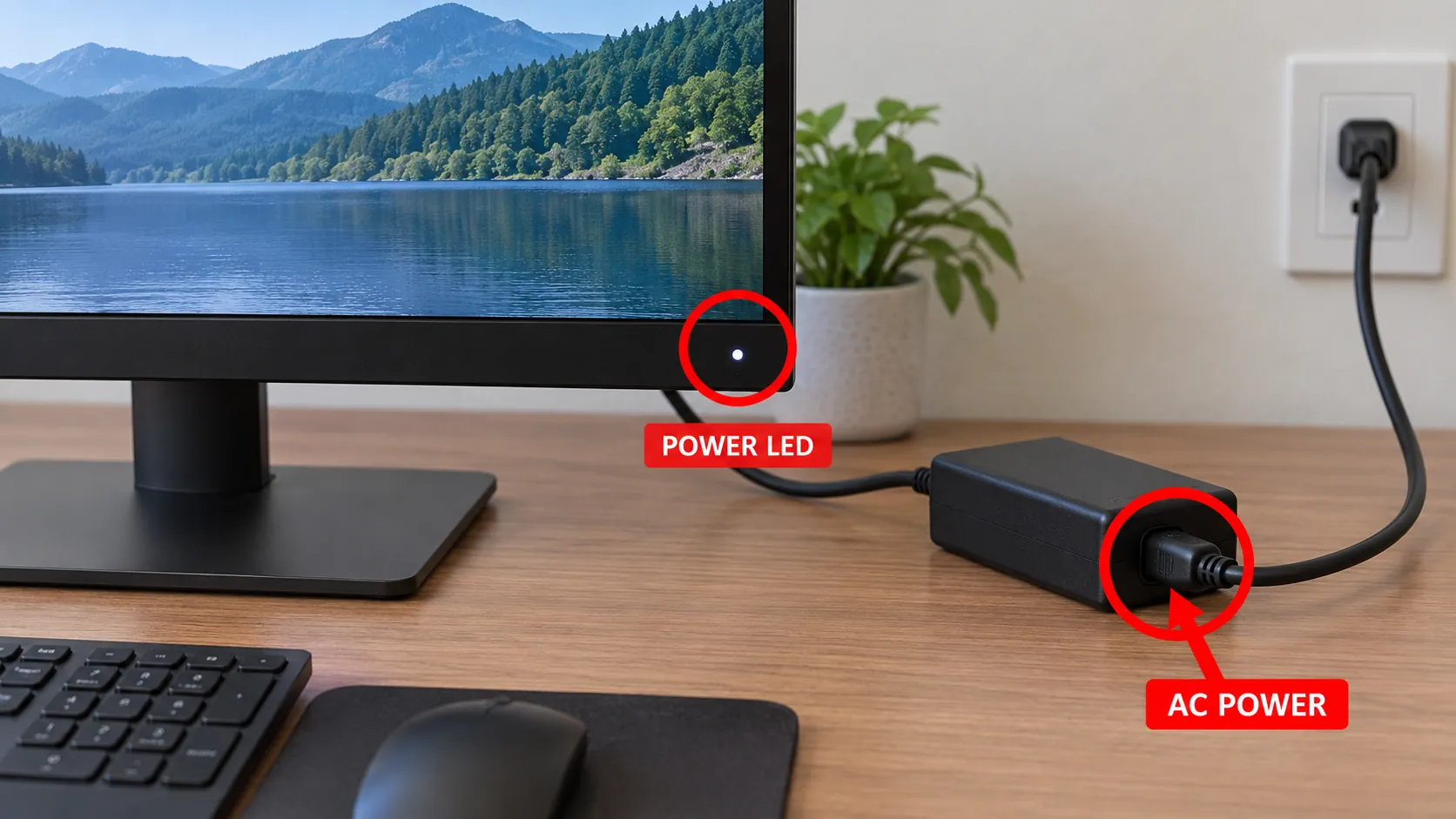
A lit or blinking monitor LED confirms the panel has power. -
Reseat the video cable both ends
Unplug from PC and monitor, wait 30 seconds, reconnect until fully seated. Wiggle-test gently — intermittent contact often looks like “PC not communicating with monitor.”
-
Swap cable and port
Try a second known-good cable and another input on the monitor (for example DisplayPort if HDMI was used). On the PC, try a second output on the same GPU.
-
Remove middleboxes
Bypass KVMs, AV receivers, USB-C hubs, and passive adapters. Establish a direct PC→monitor link first. Dock-specific notes live under external monitor → dock.
-
Confirm the PC output choice
Discrete GPU desktops: use the card’s bracket. See GPU vs motherboard. Then set OSD input and Win+P: input & Win+P.
-
Cross-test
Monitor on another PC, or another monitor on this PC. That split decides the next branch: panel repair vs PC video path (PC on, no display).

Branches
FAQ
How do I reboot my monitor?
Turn it off, unplug AC for about 30 seconds, plug back in, and power on. Then reseat the video cable.
Why is my PC suddenly not connecting to my monitor?
Loose plugs after moving the desk, a failed cable, or a port that no longer seats cleanly. Swap cable and port before replacing the GPU.
Monitor light is on but no picture
Power is present; focus on cable, correct PC port, OSD input, and Windows projection/Detect.
Do I need an HDMI-specific checklist?
Not on this site. Use these generic connectivity steps; if you already know the message is HDMI “no signal,” use a dedicated HDMI guide elsewhere rather than duplicating it here.
Official sources
- Troubleshoot external monitor connections in Windows — secure cable, try another cable/port, remove docks
- Troubleshooting blank screens in Windows
Independent DIY troubleshooting. Prefer Microsoft and OEM support for model-specific steps. We do not sell one-click fix tools or host driver packs.