Reset the graphics driver when the monitor will not work
When the PC is on but the monitor will not stay in sync — especially after sleep or a driver update — reset the graphics stack. This page includes Safe Mode checks. We do not provide driver packs or one-click “optimizers.”
Soft reset and quick checks
-
Win+Ctrl+Shift+B
Use it even if the screen looks dead, as long as the machine responds to caps-lock. Repeat once if nothing happens after five seconds.
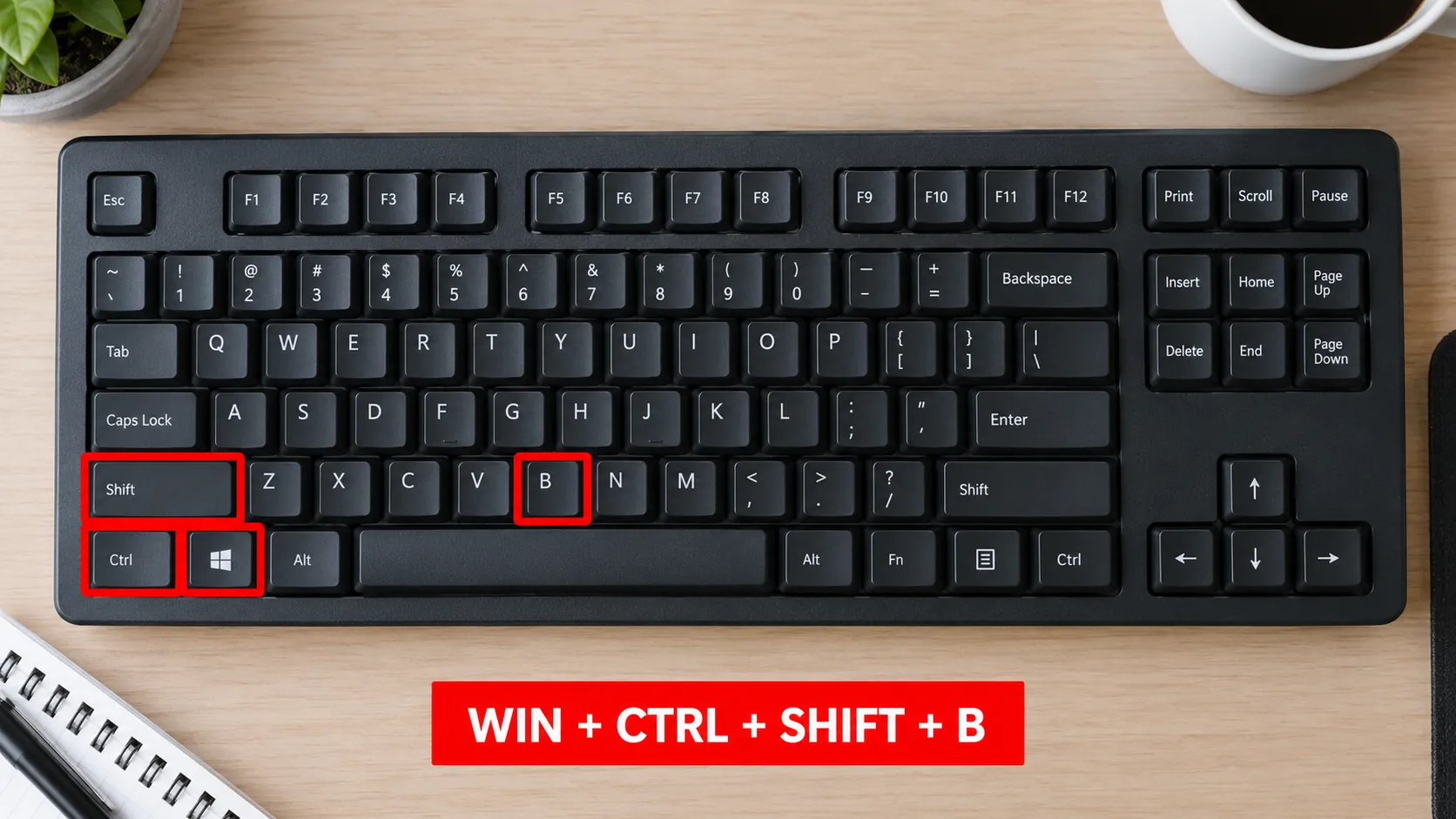
Graphics driver reset shortcut used in Microsoft blank-screen guidance. -
Restart once
If the soft reset fails, a clean reboot clears many hung display devices. Hold the power button ~10 seconds only if the OS is fully frozen.
-
Roll back only if the break followed an update
From a working screen (or Safe Mode below), open Device Manager → Display adapters → your GPU → Properties → Driver → Roll Back Driver when the button is available. Otherwise use Update driver → Search automatically, or install from the GPU/PC maker’s site.

Safe Mode display check (merged)
Safe Mode loads minimal drivers. If the monitor works in Safe Mode but fails in normal mode, the full graphics driver is the prime suspect.
-
Enter Windows Recovery → Safe Mode
Follow Microsoft’s Safe Mode article: hold Shift while selecting Restart from the power menu when you can see the sign-in screen, or use the forced-shutdown cycle into Recovery when the display is blank (described in blank-screen troubleshooting). Then: Troubleshoot → Advanced options → Startup Settings → Restart → choose Safe Mode (or Safe Mode with Networking).
-
In Safe Mode, inspect Display adapters
Device Manager → Display adapters. Update, roll back, or Uninstall device (check “Attempt to remove the driver for this device” when present), then reboot to normal Windows and let Windows reinstall a basic driver — or install the maker’s package afterward.
-
Exit Safe Mode
A normal restart usually exits. If it stays in Safe Mode, run msconfig, Boot tab, clear Safe boot.
Branches
FAQ
Does Win+Ctrl+Shift+B reinstall the driver?
No. It restarts the graphics driver stack in place. Use Device Manager or the vendor installer for real updates.
Should I download a mega driver pack?
No. Use Windows Update, Device Manager, or the PC/GPU manufacturer’s site only.
When do I need Safe Mode?
When the soft reset fails and you cannot reach Display settings normally, or when a bad driver update made every boot blank.
Official sources
- Troubleshooting blank screens in Windows — Win+Ctrl+Shift+B, Safe Mode, roll back
- Troubleshoot external monitor connections in Windows — graphics reset
- Start your PC in Safe Mode in Windows
Independent DIY troubleshooting. Prefer Microsoft and OEM support for model-specific steps. We do not sell one-click fix tools or host driver packs.