Monitor not detected in Windows
Windows is usable on at least one screen, but an attached monitor never appears under Display settings — or Detect does nothing. Force recognition only after the cable and projection mode are correct.
Ordered steps
-
Confirm the physical link
Reseat the cable. Try another port on the PC and on the monitor. Bypass hubs for this test. Microsoft’s external-monitor article starts with secure cables and removing conflicting docks/dongles.
Related: power / cable / port
-
Open Display settings and Detect
Go to Settings → System → Display. Expand Multiple displays and select Detect. If a display appears, select Identify to match numbers to physical screens.
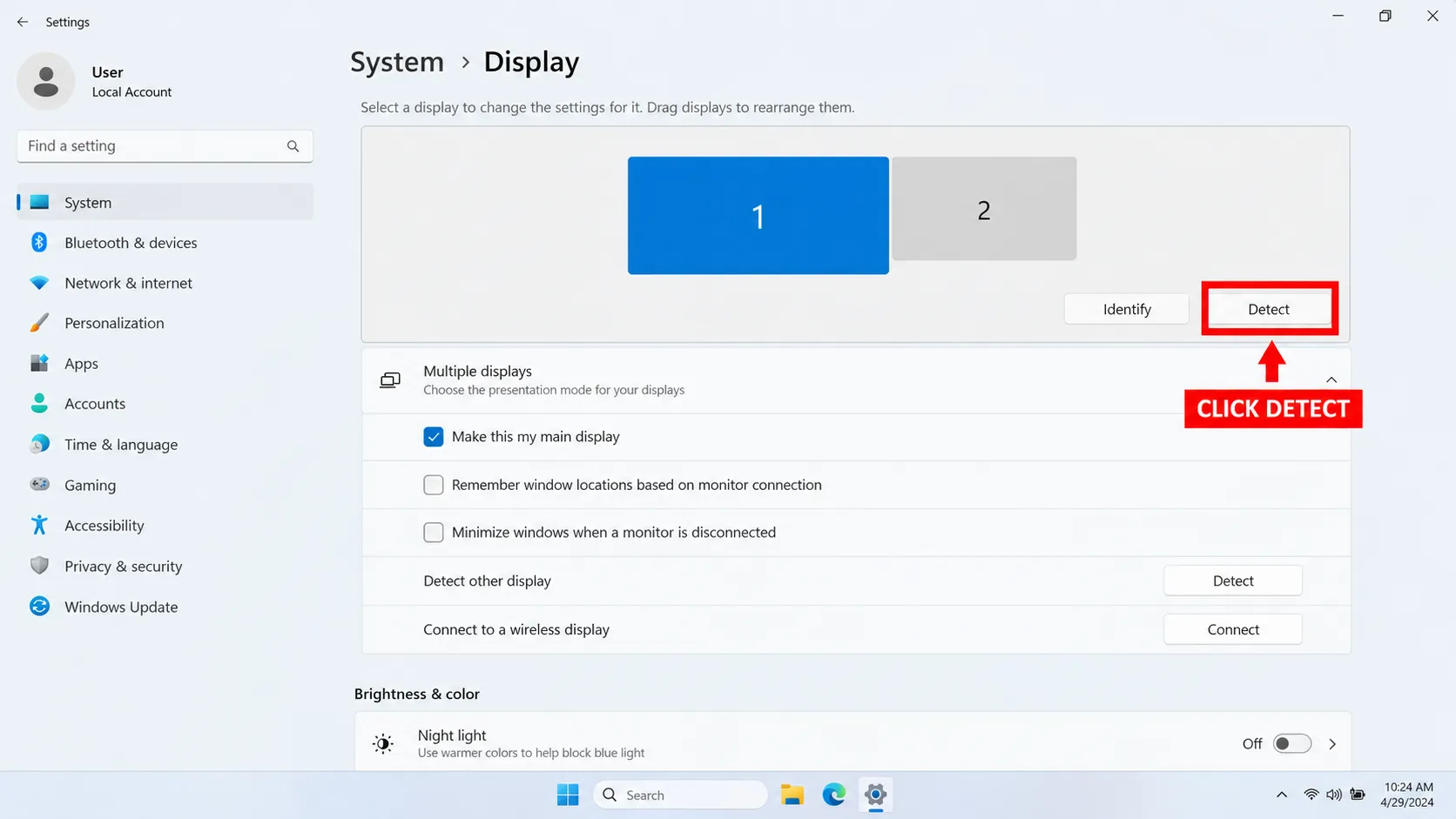
Detect asks Windows to look for displays that are connected but not yet active. -
Arrange and set Extend
Drag the display rectangles to match your desk layout, then Apply. Keep Multiple displays set to Extend (or Duplicate if you intentionally mirror).
Official walkthrough: Microsoft’s “How to use multiple monitors in Windows.”
-
If Detect still finds nothing
Try a different cable type (for example DisplayPort instead of HDMI) on a GPU port. On laptops, see external monitor. Then reset the graphics stack: driver reset.
-
Ghost / leftover displays
If Display settings lists a monitor that is no longer plugged in, disconnect every spare cable, reboot, and Detect again. OEM articles (for example Dell’s ghost-monitor guidance) cover stubborn unattached entries.

Branches
FAQ
How do I force Windows to detect a monitor?
Settings → System → Display → Multiple displays → Detect. Pair it with Win+P → Extend and a firmly seated cable.
Why can't my display settings identify my monitor?
Identify only numbers displays Windows already sees. If Detect finds nothing, fix the cable/port/driver path first.
Why is my computer suddenly not detecting my monitor?
Common after sleep, a GPU driver update, a loose plug, or Windows leaving the session on PC-screen-only. Reset with Win+P, Detect, then Win+Ctrl+Shift+B.
How to get rid of a monitor in display settings?
Unplug it, reboot, and Detect again. Persistent “ghost” entries may need OEM steps to remove non-attached displays.
Official sources
- How to use multiple monitors in Windows — Detect / Identify
- Troubleshoot external monitor connections in Windows
Independent DIY troubleshooting. Prefer Microsoft and OEM support for model-specific steps. We do not sell one-click fix tools or host driver packs.