Set monitor input source and Windows projection (Win+P)
A working PC can still look “broken” with the monitor if the OSD is on the wrong input or Windows projection is stuck on PC screen only.
Ordered steps
-
Set the monitor input manually
Open the OSD with the buttons on the bezel or joystick. Pick the matching input and exit the menu. Wait a few seconds for sync.
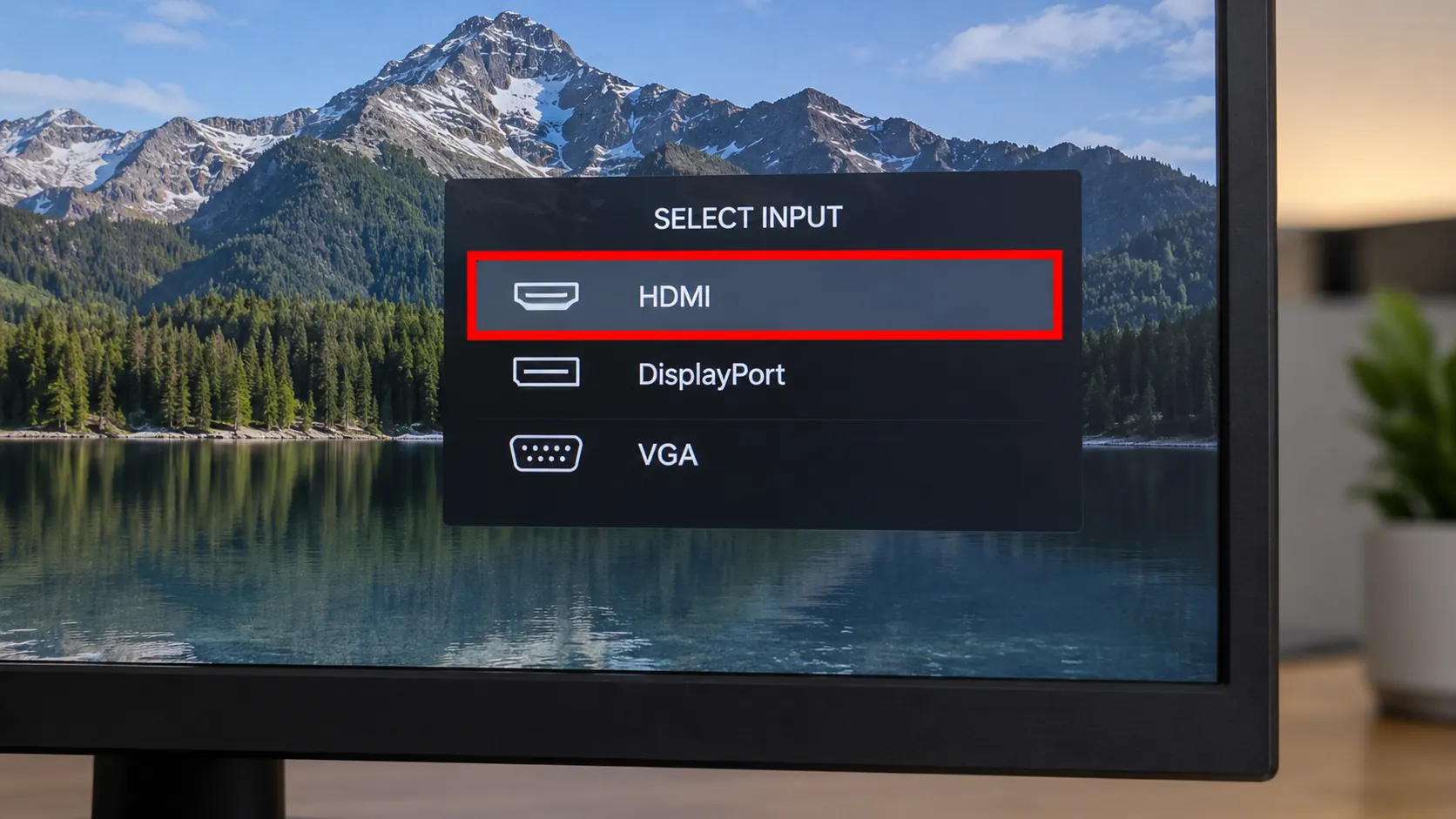
Manual input beats flaky Auto Source when troubleshooting. -
Cycle Windows projection (Win+P)
Press Windows + P. Choose Duplicate or Extend for everyday dual use; choose Second screen only when the laptop lid is closed. Microsoft documents these four modes in the multiple-monitors article.
-
Blind keypresses when the panel is dark
If you cannot see the flyout, press Win+P, then ↓ two or three times, Enter, wait five seconds, and repeat through the modes. Caps Lock LED toggles confirm the keyboard still reaches Windows.
-
Follow with Detect
When any image returns, open Display settings and Detect/Identify as on monitor not detected.
-
If modes change nothing
Return to cable and port or graphics driver reset. Projection cannot fix a cable in the wrong GPU/motherboard port — see GPU vs motherboard.

Branches
FAQ
What does Win+P do?
It opens Windows projection: PC screen only, Duplicate, Extend, or Second screen only.
Why does the monitor say it has a cable but stay black?
Often the OSD is watching a different input than the one you plugged into. Set input manually.
Should I Detect before or after Win+P?
Extend first, then Detect. Detect will not help if Windows is told to ignore other screens.
Official sources
- How to use multiple monitors in Windows — Win+P modes
- Troubleshoot external monitor connections in Windows — starts with Win+P Extend
Independent DIY troubleshooting. Prefer Microsoft and OEM support for model-specific steps. We do not sell one-click fix tools or host driver packs.