External monitor not working
The built-in laptop panel works — or your primary desktop monitor works — but an external or second display stays dark, never shows in Display settings, or only works through a flaky dock. This page merges those branches.
Laptop: built-in OK, external dead
-
Cycle Win+P
Try Duplicate, Extend, and Second screen only. Wait a few seconds after each choice.
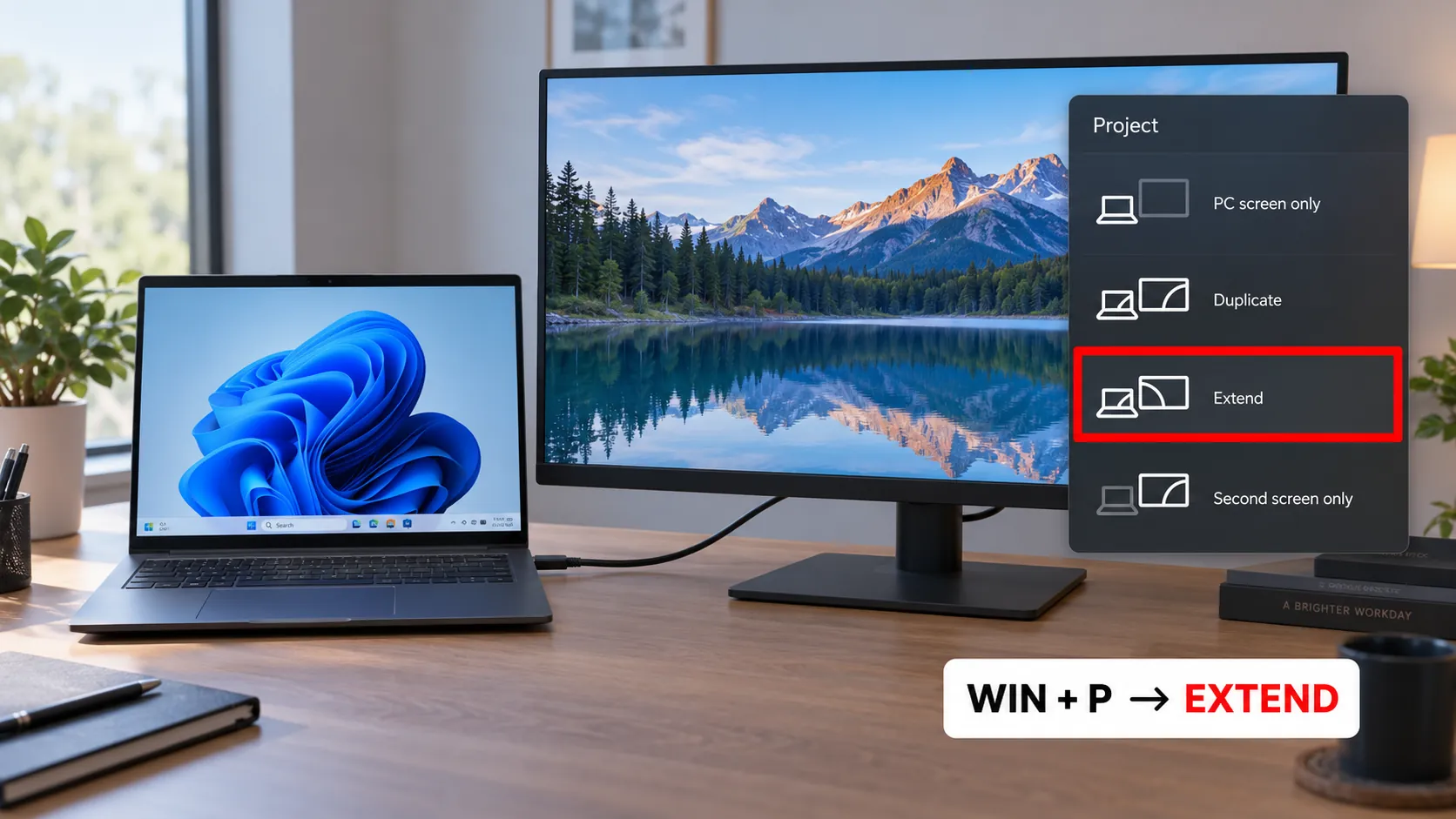
Projection mode often restores an external panel that looked dead. -
Direct cable, correct port
Prefer a direct HDMI/DisplayPort/USB-C cable into a port that supports video. Some USB-C ports are data-only — check the laptop marking or OEM manual.
-
Close-lid behavior
If you use the laptop closed, set Windows to not sleep on lid close while plugged in, then rely on Second screen only. Otherwise open the lid once to confirm the OS is awake.

Second monitor never appears (primary works)
Follow the Detect flow on monitor not detected. Extra checks for a second panel:
- Confirm the GPU / laptop supports the number of displays you want (Microsoft notes adapter limits and that simple splitters only duplicate a signal).
- Plug the second display into a different output on the same GPU rather than daisy-chaining through a consumer splitter.
- After Detect succeeds, use Identify and drag the layout so the mouse can reach the second screen.
Dock, USB-C hub, and MST
Bypass first. Microsoft’s external-monitor guidance says docks, dongles, and adapters can conflict. Connect the monitor with one direct cable. If the direct path works, the dock/hub/cable is the suspect — not Windows “forgetting” the display.
-
Use a video-capable USB-C port
DisplayPort Alternate Mode is required for many USB-C→DisplayPort/HDMI paths. See Microsoft’s USB-C troubleshooting for Alternate Mode limits.
-
Power the dock
Undersized hubs drop the display under load. Use the dock’s own power brick when provided.
-
Update only from OEM / GPU vendor when needed
If the direct cable works but the dock does not after Win+P and Detect, install display/chipset updates from the PC or dock maker — not third-party “driver pack” sites.

Shared wrap-up
If the external panel is still missing: input & Win+P → Detect → driver reset.
FAQ
Why is my external monitor not displaying?
Wrong Win+P mode, data-only USB-C port, bad hub, or Windows never Detecting the panel. Bypass the dock and Extend first.
Why is my monitor plugged in but not working?
“Plugged in” is not enough — confirm video-capable pins, OSD input, and that Display settings lists the screen after Detect.
How do I reset an external monitor?
Power-cycle the panel (unplug AC ~30 seconds), reseat the cable, Win+P, then Detect. For the PC side, use Win+Ctrl+Shift+B.
Why is my PC suddenly not detecting my monitor?
Sleep/resume bugs, driver updates, and loose USB-C docks are common. Direct-cable test, then driver reset.
Official sources
- Troubleshoot external monitor connections in Windows
- How to use multiple monitors in Windows
- Fix USB-C problems in Windows
Independent DIY troubleshooting. Prefer Microsoft and OEM support for model-specific steps. We do not sell one-click fix tools or host driver packs.