Plug into the graphics card, not the motherboard ports
On a desktop with a discrete graphics card, motherboard HDMI/DisplayPort/USB-C video jacks often stay silent. The cable must go into the GPU’s rear bracket — any connector type.
Ordered steps
-
Move the cable to the GPU bracket
Shut down, move HDMI/DP/USB-C to the graphics card outputs, power on. This single change fixes many “PC not detecting monitor” builds.
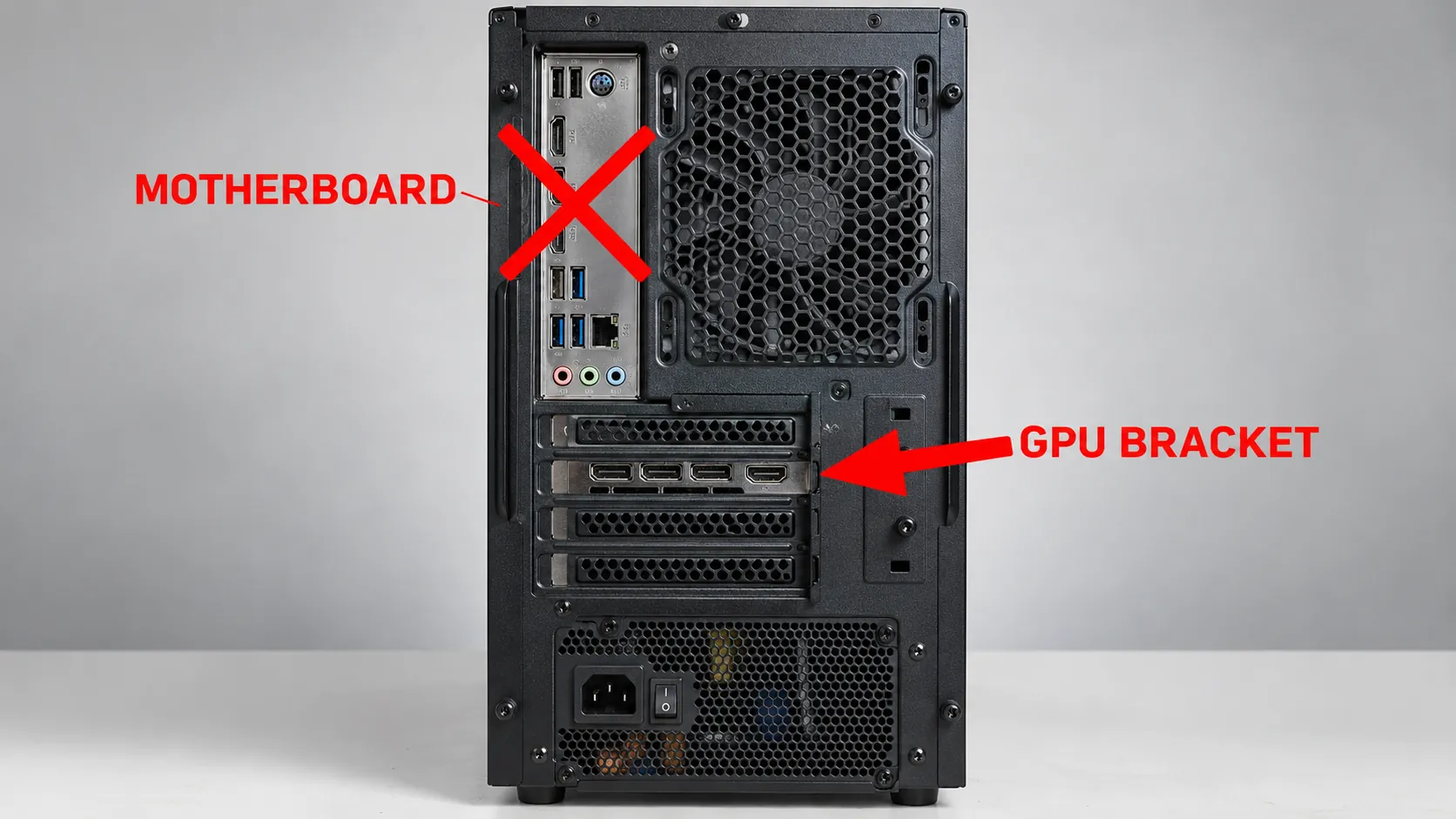
Use the graphics card outputs when a discrete GPU is installed. -
Confirm GPU power cables
If the GPU has 6/8-pin power sockets, ensure the PSU cables click in. An underpowered card may spin fans yet never hand off a display.
-
Only then try motherboard ports
If you intentionally want integrated graphics, enable iGPU in firmware (varies by board) or remove the discrete card. Do not expect both to work without setup.
-
After the image returns
Set OSD input and Win+P as needed: input & Win+P. Multi-monitor Detect: not detected.

Branches
FAQ
Why did my old PC work on motherboard HDMI?
Many office PCs use only integrated graphics. Once you install a discrete GPU, firmware often stops routing video to the motherboard jacks.
Does this apply to DisplayPort and USB-C too?
Yes. The rule is about which device owns the output, not about HDMI specifically.
Laptop with USB-C video?
Laptops do not have a separate “motherboard vs GPU bracket” in the same way. Use external monitor instead.
Official sources
- Troubleshoot external monitor connections in Windows — try other video outputs / adapters
- Troubleshooting blank screens in Windows
Independent DIY troubleshooting. Prefer Microsoft and OEM support for model-specific steps. We do not sell one-click fix tools or host driver packs.